
Features
Text-to-speech (TTS)
MiuWave can read each translation aloud as soon as it appears — like having an interpreter beside you. TTS is off each time you open the app.
Turn it on and off
- Click Đọc bản dịch (Read translation aloud) in the bottom bar, or press ⌘ T (Windows: Ctrl T).
- TTS works with the text engines (Soniox, Local, SenseVoice) in one-way translation. OpenAI Realtime has its own voice (off by default); Qwen returns text only.
- In two-way translation, TTS turns itself off to avoid an audio loop.
Choose a provider
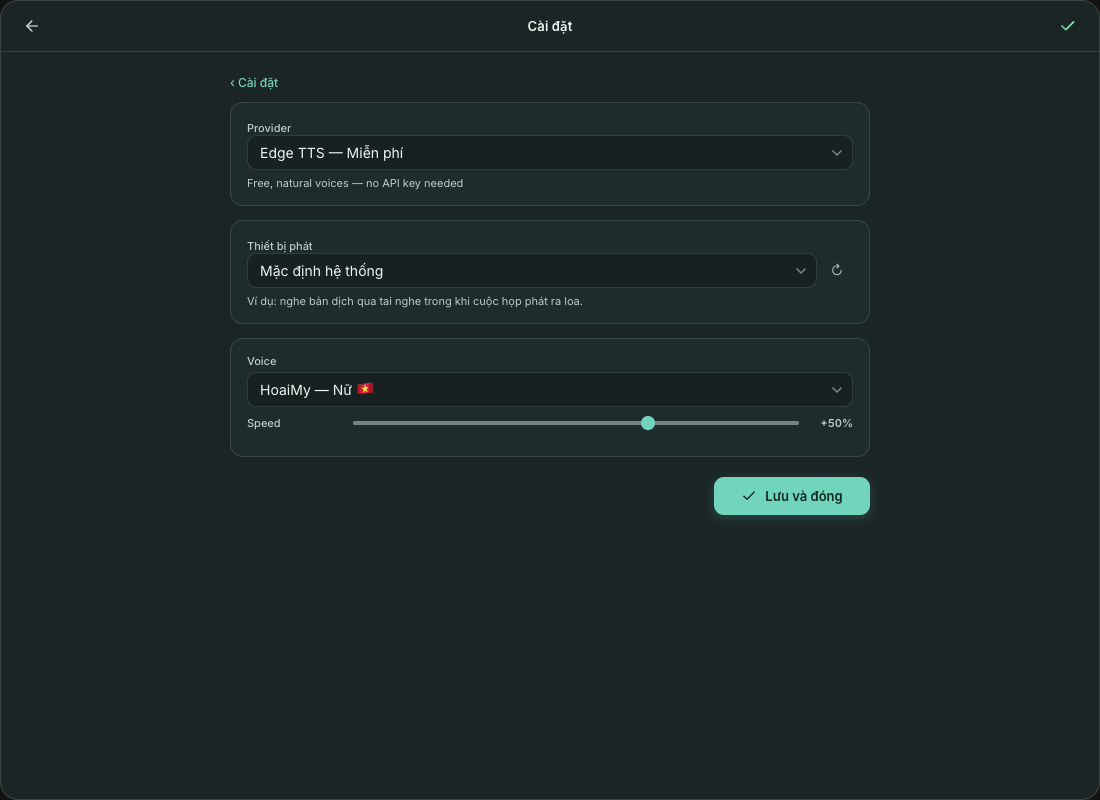
Go to Cài đặt (Settings) → Giọng đọc (TTS) (Text-to-speech) → Provider.
| Provider | Cost | What it needs | Notes |
|---|---|---|---|
| Edge TTS | Free | No key needed | Default. Vietnamese: HoaiMy (female), NamMinh (male). Adjustable speed, default +20% |
| Google Chirp 3 HD | 1 million characters/month free, then $30 per 1 million | A Google Cloud API key with the Text-to-Speech API enabled | Close to a human voice; 6 Vietnamese voices; speed 0.5x–2.0x |
| ElevenLabs | From ~$5/month | An ElevenLabs API key | Premium, very natural voices; no speed control |
| Soniox TTS | Billed to your Soniox account | Your Soniox key itself, with the “Text-to-speech” permission | 28 voices, each speaks every language; reads in the translation's target language |
| Local (Offline) | Free | Download Piper voices (~65 MB each) | Runs entirely on your computer, no network needed |
| Microsoft v2, Google TTS, TikTok TTS | Free | TikTok needs a sessionid | Google TTS is experimental and may stop working at any time; text is sent to Google or TikTok |
The Edge voice list shows only voices for the target language; when you change the target language, the Edge/Google voice switches to one that speaks it. Click Lưu và đóng (Save and close) after making changes.
Get a Google Cloud key (Chirp 3 HD)
- Go to console.cloud.google.com and create a new project or use an existing one.
- Enable the Text-to-Speech API (Enable).
- Go to Credentials → Create Credentials → API Key and copy the key (it looks like
AIzaSy...). - Restricting the key is recommended: Restrict key → API restrictions → select only Cloud Text-to-Speech API.
Get an ElevenLabs key
- Create an account at elevenlabs.io and subscribe to a paid plan (for example Starter).
- Go to the API Keys page, click Create API Key and copy the key.
- Paste it into the ElevenLabs API Key field and choose a voice.
Output device
Cài đặt (Settings) → Giọng đọc (TTS) (Text-to-speech) → Thiết bị phát (Output device): reads translations through the device you choose, for example hearing the translation in headphones while the meeting plays on the speakers. The default is Mặc định hệ thống (System default); click ↻ to reload the device list.
If the device is unplugged or no longer available, the app plays through the default device and shows a warning. This applies to both live read-aloud and the Đọc (Read) tab.
On-device Piper voices
The Local (Offline) — Miễn phí (Local (Offline) — Free) provider runs Piper neural voices right on your computer: no network, no key, no data sent anywhere. Works on macOS and Windows.
- Choose the Local (Offline) — Miễn phí provider.
- Choose a language (Tiếng Việt / English) to filter the Voices list.
- Click the download button next to a voice. The first time, the app asks where to store models: the app's default folder or a folder you choose.
- Choose a downloaded voice, then turn TTS on.
- Each voice is about 65 MB, with a progress bar while downloading. The delete button removes the model from disk.
- Change the Model folder at any time; voices in the old folder simply stop showing and are not moved.
- Available voices: Vietnamese (VAIS1000), English (Ryan, Lessac).
The Read tab
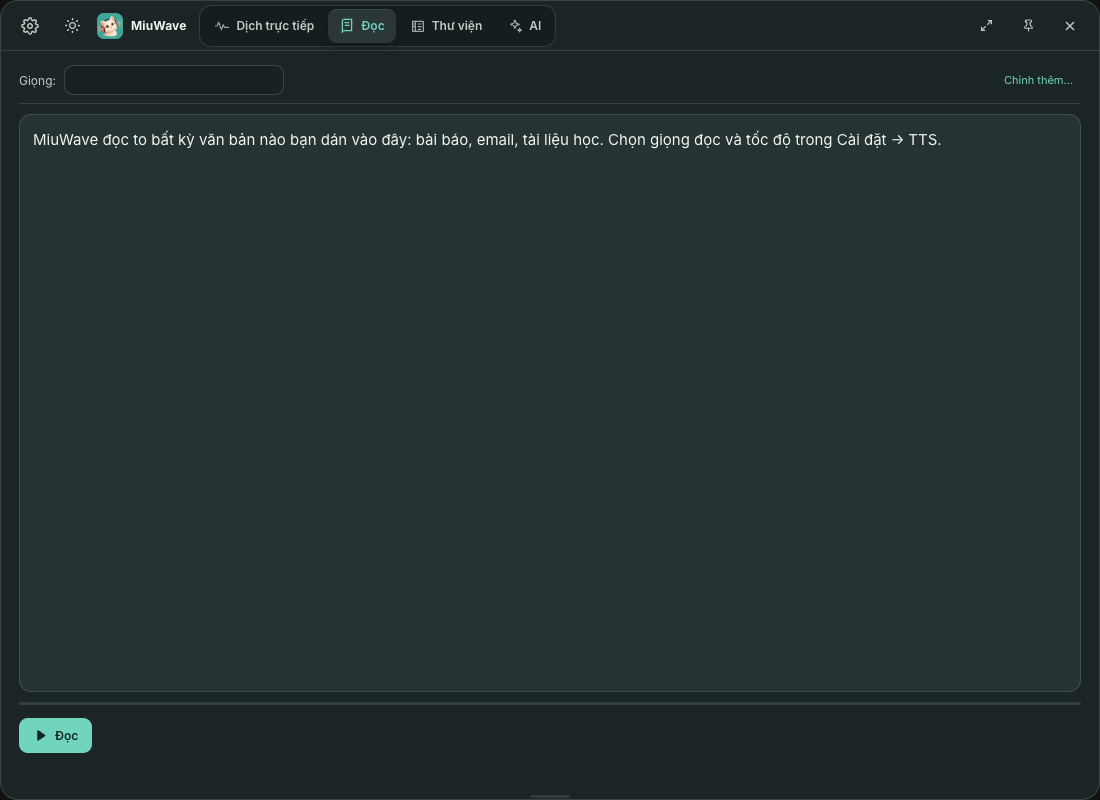
The Đọc (Read) tab reads any text aloud: paste or type text, choose a voice under Giọng: (Voice:; Chỉnh thêm… (More settings…) opens the TTS settings), then click Đọc (Read), Tạm dừng (Pause) or Dừng (Stop).
Lower the TTS volume, switch Thiết bị phát (Output device) to headphones, or pause the translation session while it reads.