
Features
Session library
Every translation session is saved automatically on your computer. The Library tab lets you find, read, ask the AI about and export your transcripts.
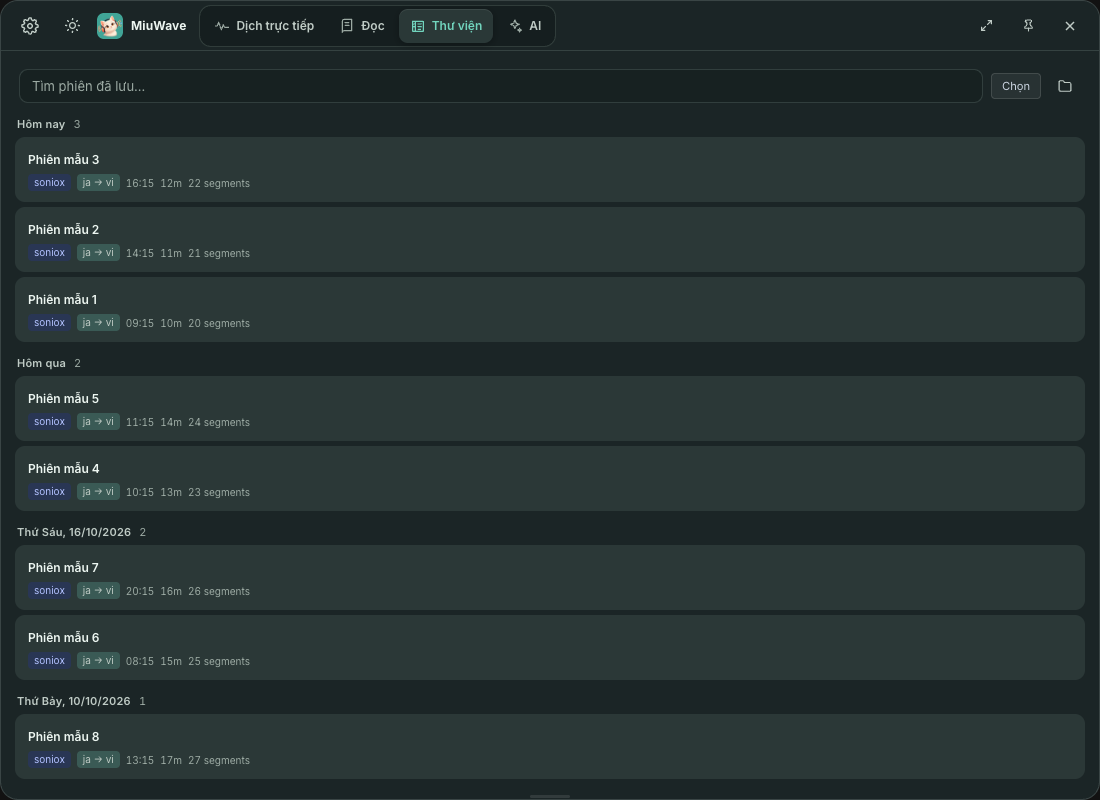
Session list
- Sessions are grouped by day: Hôm nay (Today), Hôm qua (Yesterday), then by date; each session shows its start time.
- Search quickly with the Tìm phiên đã lưu… (Search saved sessions…) box.
- Click a session to open it; in the viewer you can rename the session, click Hỏi AI (Ask AI) to ask AI Companion about it, or Copy.
- Segments you pinned while translating are marked ★.
Select and delete several sessions
- Click Chọn (Select) to turn on selection mode.
- Tick sessions one by one, or tick a whole day from its date heading. The app shows how many are selected (Đã chọn …, … selected).
- Click Xoá (Delete) and confirm in the app's dialog, or Huỷ (Cancel) to leave.
A session that is still recording can't be selected or deleted.
Export a transcript
In a session's viewer, choose a format:
| Format | Good for |
|---|---|
.md | Markdown — notes, documents |
.srt | Subtitle file for videos |
.txt | Plain text |
You can also quickly export the running session from ⋯ → Xem toàn bộ phiên (View full session) → Lưu thành .txt (Save as .txt). Old sessions stored as .md files by earlier versions can be viewed but not exported.
Session folder
Go to Cài đặt (Settings) → Hiển thị (Display) → Thư mục lưu phiên (Session folder) to:
- Choose another folder (the app checks write access first). When you change it, the app offers to move your saved sessions; if the move fails, every file stays where it was. Only MiuWave session files are moved.
- Go back to the default folder (↺) or open the folder.
The folder button in the Library tab also opens the folder of saved transcripts.