
Features
Live translation
MiuWave's main screen. Choose an audio source, click Start, and the translation follows the speech.
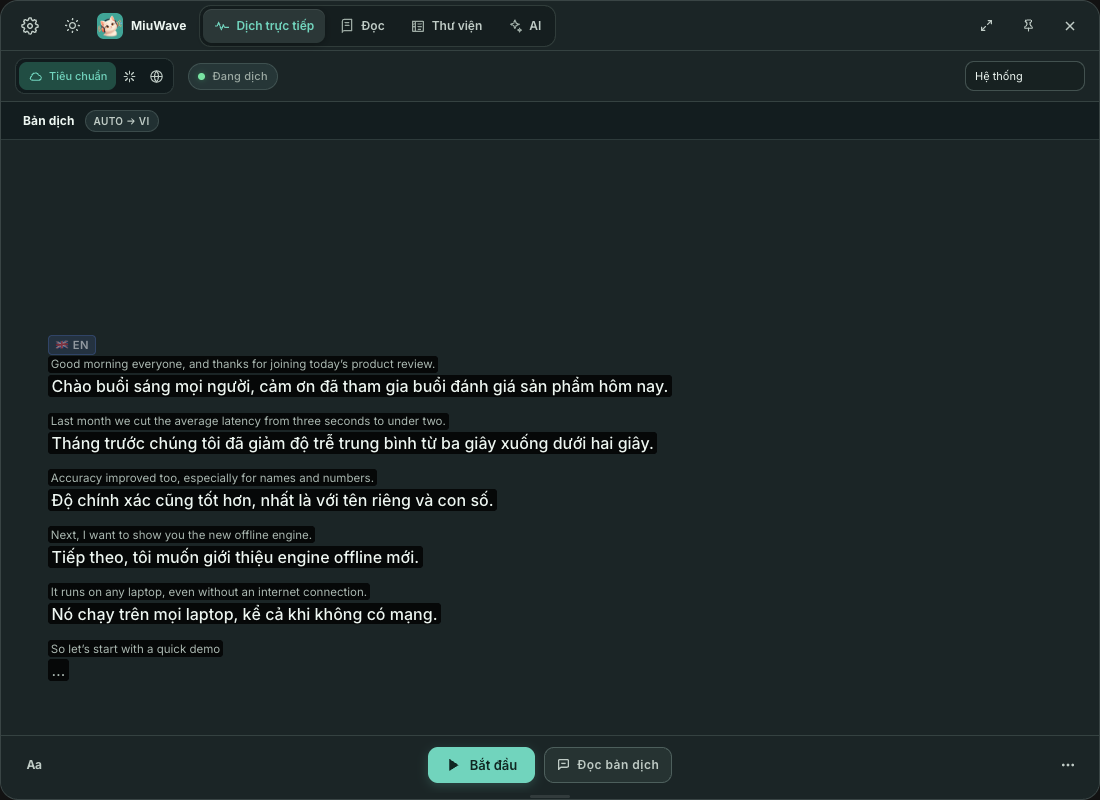
Screen layout
- Top bar: Cài đặt (Settings), the light/dark theme button, the tabs Dịch trực tiếp (Live translation) · Đọc (Read) · Thư viện (Library) · AI, the engine modes Tiêu chuẩn (Standard) · OpenAI · Qwen, and the Ghim cửa sổ nổi (Pin window on top) button.
- Status: for example Sẵn sàng (Ready), next to the session clock and the audio source buttons.
- Translation area: the Bản dịch (Translation) label and the source → target language pair sit right next to the content.
- Bottom bar: the Aa, Bắt đầu (Start), Tạm dừng (Pause) and Đọc bản dịch (Read translation aloud) buttons and the ⋯ menu.
Audio source: System, Mic, Both
| Source | What it hears | Shortcut |
|---|---|---|
| Hệ thống (System) | Everything playing on your computer: videos, podcasts, meetings | ⌘/Ctrl 1 |
| Mic | Speech through the microphone | ⌘/Ctrl 2 |
| Cả hai (Both) | Mixes system audio and the microphone, so both people talking are transcribed | ⌘/Ctrl 3 |
On a Mac, the Hệ thống (System) source needs the Screen & System Audio Recording permission.
Two-way translation
Translate a conversation between two languages at once — ideal for bilingual meetings. The app detects who is speaking and translates into the other language.
- Choose the Cả hai (Both) source (system audio + microphone) for Zoom, Google Meet, MS Teams.
- Cài đặt (Settings) → Engine dịch (Translation engine) → Translation Type: choose Two-way.
- Choose Language A and Language B. Speech in language A is translated into B and vice versa; other languages are only transcribed, not translated.
To avoid a loop (speaker plays → microphone picks it up → it gets translated again), TTS is disabled in two-way mode. Two-way doesn't work with OpenAI Realtime or Qwen; on macOS use Soniox or Local, on Windows use Soniox.
The Aa menu: font size, text color, two columns
The Aa button in the bottom bar groups the display options:
- Cỡ chữ (Font size): the A− / A+ buttons. In Cài đặt (Settings) → Hiển thị (Display), Font Size goes up to 140 px — handy when presenting.
- Màu chữ (Text color): default, coral or blue, all easy to read on dark and light backgrounds.
- Xem nguyên văn và bản dịch (Show original and translation): switches to two columns, original on the left, translation on the right; each column scrolls on its own.
- Câu gốc trên bản dịch (Original above translation): the original text, smaller and dimmer, sits above the translation like bilingual subtitles (on by default; not available with Qwen).
- Phụ đề nổi (Live Caption) and Bấm xuyên qua (Click-through): see below.
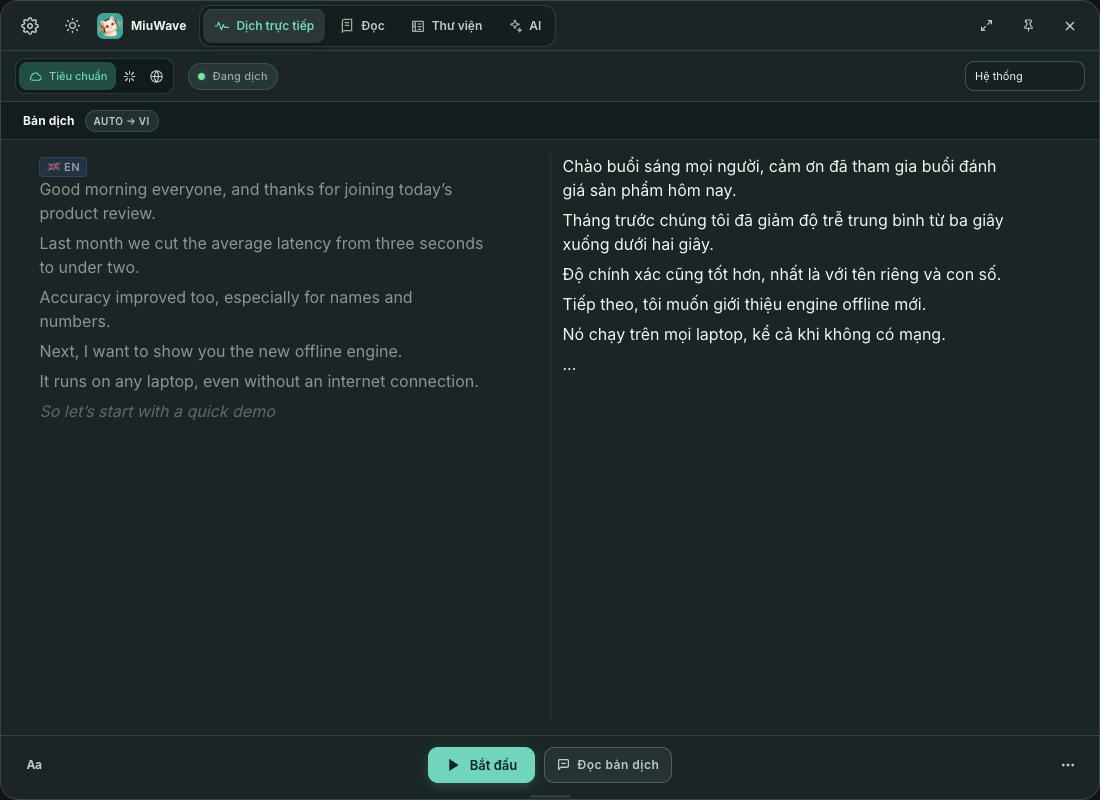
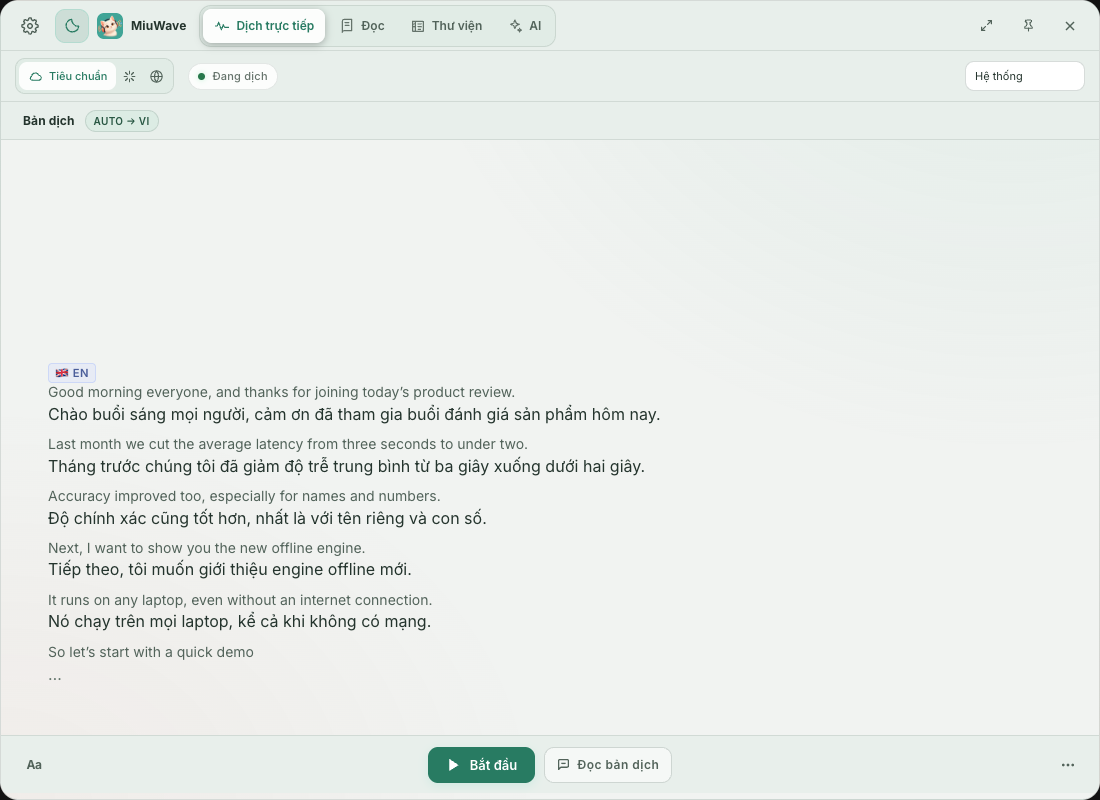
The app auto-scrolls only when you are at the bottom of the list: scroll up to reread and you won't be pulled back down. Switch between light and dark themes with the sun/moon button in the top bar; your choice is remembered.
Pin the window, pin segments and copy
- Pin the window: MiuWave opens as a normal window. Click Ghim cửa sổ nổi (Pin window on top; ⌘/Ctrl P) to keep it above other windows; the choice is remembered.
- Copy: select text to copy it right away while translating, in both one- and two-column views. New text doesn't clear your selection (the app waits up to 5 seconds). Each segment also has a copy button on hover.
- Pin a segment: the Ghim đoạn này (Pin this segment) button next to the copy button keeps that segment in a bar above the transcript (three segments visible, scroll sideways for more), even after the text has scrolled away. Pinned segments are marked ★ in the saved session. Click Bỏ ghim (Unpin) to remove one.
- The ⋯ menu: Xem toàn bộ phiên (View full session: every segment of the running session, with search, Sao chép tất cả (Copy all) and Lưu thành .txt (Save as .txt)), Sao chép bản ghi (Copy transcript), Xóa nội dung đang hiển thị (Clear displayed text), Thu gọn thanh công cụ (Compact toolbar), Tự ẩn thanh công cụ (Auto-hide toolbar) and Hướng dẫn nhanh (Quick guide).
Live Caption and click-through
Phụ đề nổi (Live Caption) is a small subtitle window that shows only the newest translation in large outlined text, readable over any video. Turn it on from the Aa menu.
- Drag it anywhere, and drag a corner to resize it. Its position and style are remembered.
- Hover over the caption to adjust it: A− / A+, Nền (Background opacity), Câu gốc (Original), Bấm xuyên qua (Click-through), Ẩn MiuWave (Hide MiuWave: hides the main window) and the close button.
- Click-through: clicks pass through MiuWave and the caption to the video or app behind, so you can still pause and seek while the caption stays on top. Turn it on from the Aa menu or on the caption; press ⌘ ⇧ L (Windows: Ctrl Shift L) to turn it off.

Session clock and long session warning
The hh:mm:ss clock next to the status counts translation time and keeps counting across Tạm dừng (Pause) / Tiếp tục (Resume).
Cloud engines keep billing when nobody is speaking. With Cảnh báo phiên dài (Long session warning; Cài đặt (Settings) → Engine dịch (Translation engine); choose Tắt (Off) or Im lặng (Silence) 15, 30, 60 or 120 minutes; default 60 minutes), after that much silence the app shows a Phiên vẫn đang chạy (Session still running) dialog with two buttons, Tiếp tục (Continue) and Dừng (Stop). With no answer within 5 minutes, the session stops on its own. Does not apply to Local.
Context and terminology
In Cài đặt (Settings) → Engine dịch (Translation engine) → Context, add General context, Transcription terms (one domain term per line), Background text and Translation terms (source → target) for more accurate translations, for example:
Original sin = Tội nguyên tổ
Christ = Kitô
Pneumonia = Viêm phổi