
Get started
Your first session in 5 steps
App installed? Follow the five steps below to see your first translation on screen.
On-screen labels are written as they appear in the app, followed by their English meaning, for example Cài đặt (Settings). Screenshots show the Vietnamese interface.
- Choose a translation mode
Before your first session, the app shows the Chọn chế độ dịch (Choose translation mode) screen with three options: Tiêu chuẩn (Standard: Soniox / Local / SenseVoice, about $0.12/hour), OpenAI Realtime (about $4/hour) and Qwen LiveTranslate Flash (free preview, text only). Not sure? Choose Tiêu chuẩn (Standard). You can switch modes at any time from the top bar.
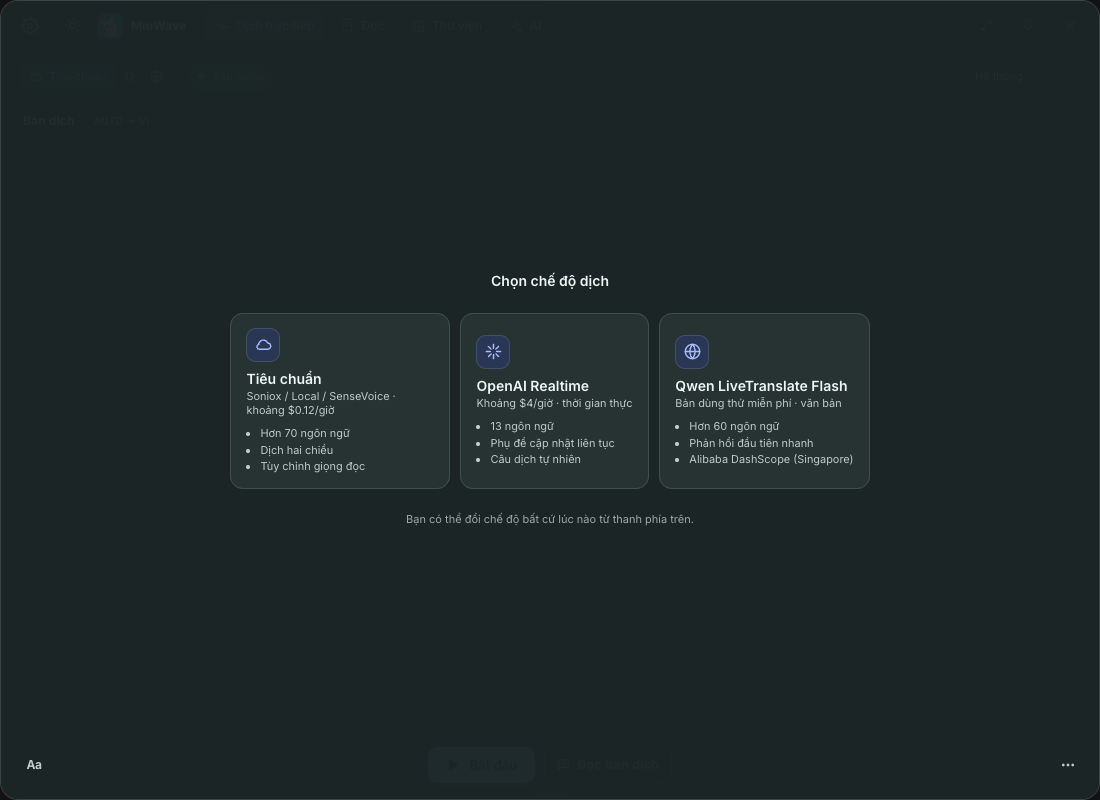
The translation mode screen on first launch. - Enter an API key and languages
Open Cài đặt (Settings) → Engine dịch (Translation engine). Choose an Engine, paste your key (for example Soniox API Key) and click Test. Choose a Source (leave it on Auto-detect if unsure) and a Target, for example English. Click Lưu và đóng (Save and close).
- Choose an audio source
On the Dịch trực tiếp (Live translation) screen, choose Hệ thống (System) to translate audio playing on your computer (videos, meetings), Mic to translate speech through the microphone, or Cả hai (Both) for video calls.
- Click Start
Click Bắt đầu (Start; ⌘ ↩ on Mac, Ctrl Enter on Windows), then play a video or join a meeting. The translation appears right under the Bản dịch (Translation) label; the clock next to the status counts the session time. Click Tạm dừng (Pause) to take a break, then Tiếp tục (Resume); click Kết thúc (End) to stop and save the session.
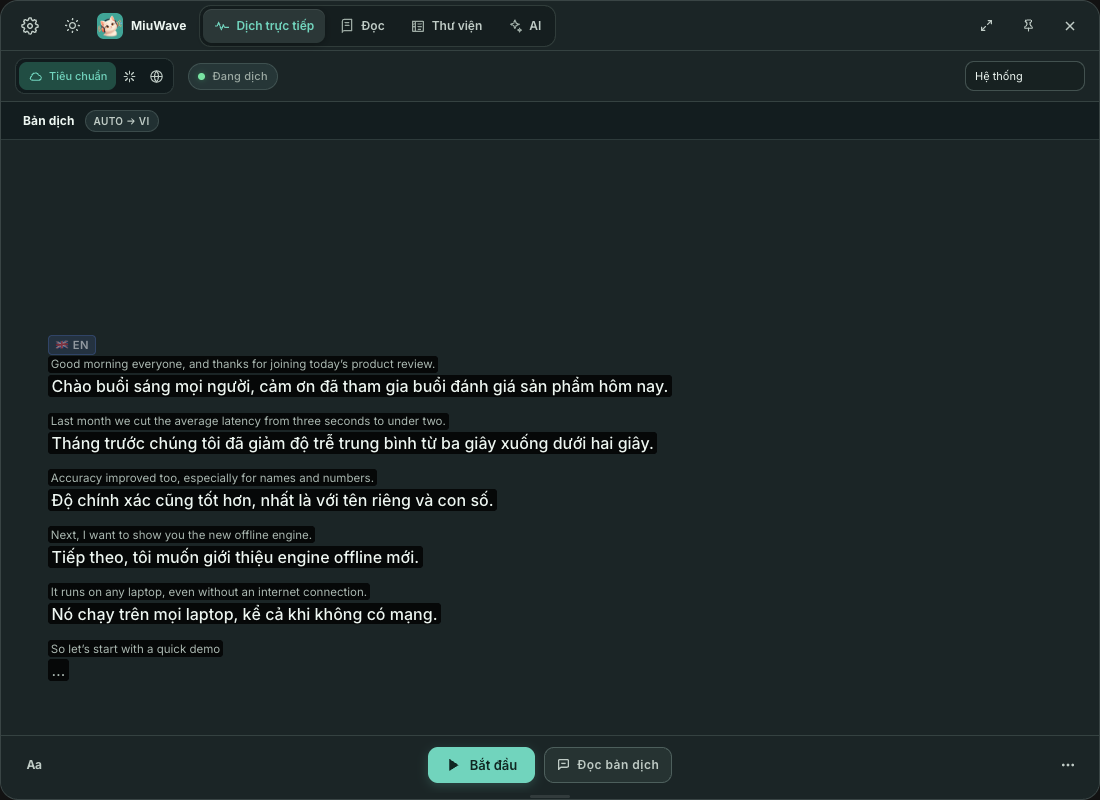
A translation session in progress. - Adjust the display
Open the Aa button in the bottom bar to change Cỡ chữ (Font size) and Màu chữ (Text color), or turn on Xem nguyên văn và bản dịch (Show original and translation, two columns) or Phụ đề nổi (Live Caption). More in Live translation.
In-app tour
Right after the translation mode screen on first launch, MiuWave shows a short tour: each card highlights one button (engine, key, audio source, Bắt đầu (Start), Aa, AI, ⋯). Click Tiếp (Next) to go to the next card, use ← → to move, and Esc to skip.
Want to see it again? Open the ⋯ menu (Thao tác khác, More actions) in the bottom bar and choose Hướng dẫn nhanh (Quick guide).
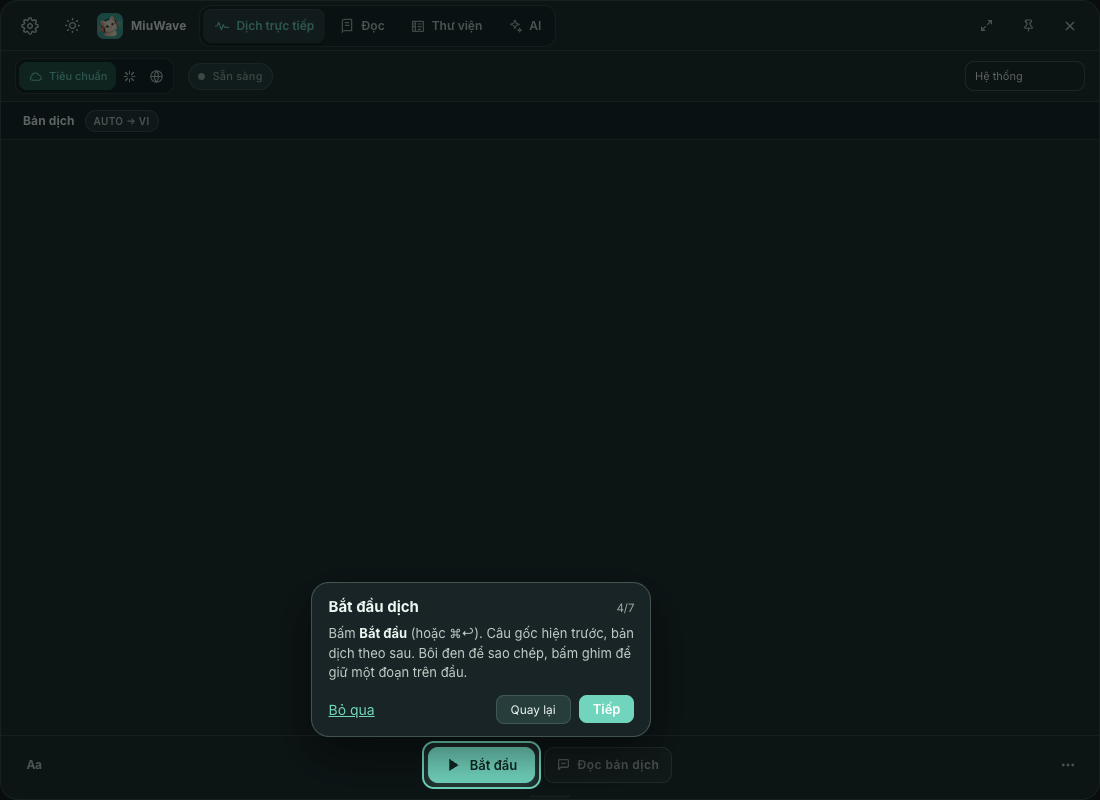
Tips for the first time
- No text when listening to the Hệ thống (System) source on a Mac? Check the Screen & System Audio Recording permission.
- Bilingual meeting: choose Two-way under Translation Type and the Cả hai (Both) source. See Two-way translation.
- Want to hear the translation? Click Đọc bản dịch (Read translation aloud; ⌘ T / Ctrl T). See Text-to-speech (TTS).
- Every session is saved automatically to the Library.