
Features
AI Companion
The AI tab answers any question about the transcript of the running session or a saved one — summarize a meeting, explain what was just said, retranslate a tricky sentence.
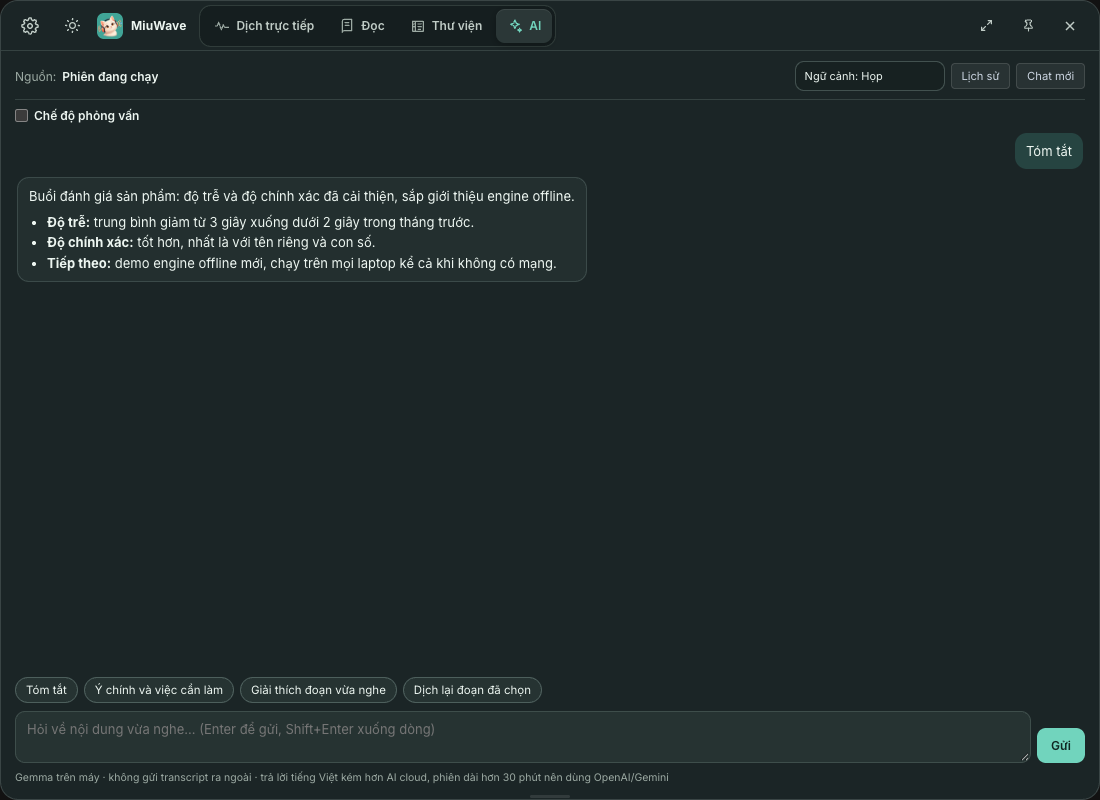
How to use it
- Open the AI tab The AI tab sits next to Dịch trực tiếp (Live translation), Đọc (Read) and Thư viện (Library). Under Nguồn: (Source:), choose Phiên đang chạy (Current session) or a saved session.
- Choose a context Họp (Meeting), Học (Study), Phim (Movie) or Tự do (Free) — each context changes how the AI answers.
- Ask, or use a quick action Type a question and click Gửi (Send; Enter sends, Shift Enter adds a new line), or choose Tóm tắt (Summarize), Ý chính và việc cần làm (Key points and action items), Giải thích đoạn vừa nghe (Explain what was just said) or Dịch lại đoạn đã chọn (Retranslate the selection). The answer appears word by word; click Dừng (Stop) to interrupt.
- Select text in the transcript to get Giải thích (Explain), Hỏi AI (Ask AI) and Dịch lại (Retranslate) right there.
- From the Library, open a session and click Hỏi AI (Ask AI).
- Conversations are saved in Lịch sử (History); reopen one to keep asking, or click Chat mới (New chat).
- Answers use the translation's target language, or set one in Cài đặt (Settings) → AI Companion → Ngôn ngữ trả lời (Reply language).
AI sources
Choose one in Cài đặt (Settings) → AI Companion → Nguồn AI (AI source). The default is Tự động (Gemma trên máy → OpenAI → Gemini → Ollama) (Automatic: on-device Gemma → OpenAI → Gemini → Ollama). When no source is available yet, the AI tab shows Chọn nguồn AI để bắt đầu (Choose an AI source to start) with the options below.
| Source | What it needs | Notes |
|---|---|---|
| On-device Gemma | An Apple Silicon Mac; a one-time download of about 5 GB (the model the Local engine uses) | Free, offline, the transcript never leaves your computer |
| OpenAI | An OpenAI key | Better answers for long sessions |
| Gemini | A Gemini key (Google AI Studio offers free keys) | Better answers for long sessions |
| Ollama | Install Ollama (ollama.com), run ollama pull gemma3:4b, then click Thử lại (Retry) | Runs on your computer |
On-device Gemma answers in Vietnamese less well than cloud AI. For sessions longer than 30 minutes, use OpenAI or Gemini. Long sessions are condensed part by part to fit a small model.
While a session runs on the Local engine
The Local engine has already loaded its own Gemma, so automatic mode prefers an OpenAI, Gemini or Ollama key first. If Gemma is the only source, the AI still answers, but more briefly, with a smaller context, and frees memory about 20 seconds after the last answer. On Macs with less than 16 GB of RAM, the AI first asks whether to pause the session or carry on (live translation may slow down).
Want the AI to suggest answers in an interview? See Interview mode.