
Support
App settings
Open Settings with the gear button in the top bar or ⌘ , (Windows: Ctrl ,). The main page groups every option into six cards.
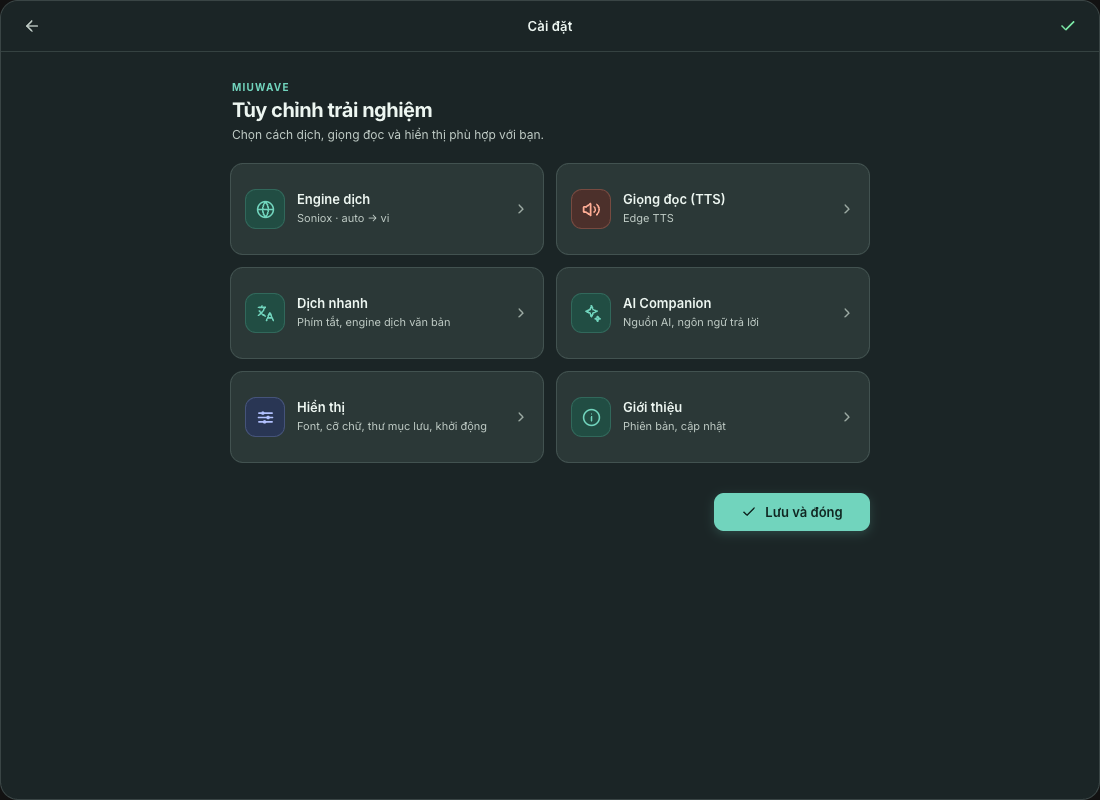
The six settings cards
| Card | What's inside | See also |
|---|---|---|
| Engine dịch (Translation engine) | Engine, Soniox / OpenAI / Qwen API keys with a Test button, Translation Type (One-way / Two-way), Dịch bằng (Translate with), Source, Target, Language A/B, Strict language detection, Endpoint Delay, Audio Source, Cảnh báo phiên dài (Long session warning), Context | Choose an engine, Live translation |
| Giọng đọc (TTS) (Text-to-speech) | Provider, Thiết bị phát (Output device), voice, speed, each provider's key | Text-to-speech |
| Dịch nhanh (Quick Translate) | Quick Translate and screenshot (OCR) shortcuts, Ngôn ngữ chữ trong ảnh (Text language in image), Dịch sang (Translate to), Engine hiển thị (Engines shown), DeepL / Gemini keys, OpenAI model, Ollama | Quick Translate and OCR |
| AI Companion | Nguồn AI (AI source), Ngôn ngữ trả lời (Reply language) | AI Companion |
| Hiển thị (Display) | Opacity, Font Size, Max Lines, Show original text, Thư mục lưu phiên (Session folder), Khởi động (Startup) | Session folder |
| Giới thiệu (About) | Version, updates, GitHub link and bug reports | Updates |
Click ‹ Cài đặt (‹ Settings) to return to the main page, Lưu và đóng (Save and close) to save, and Esc to close.
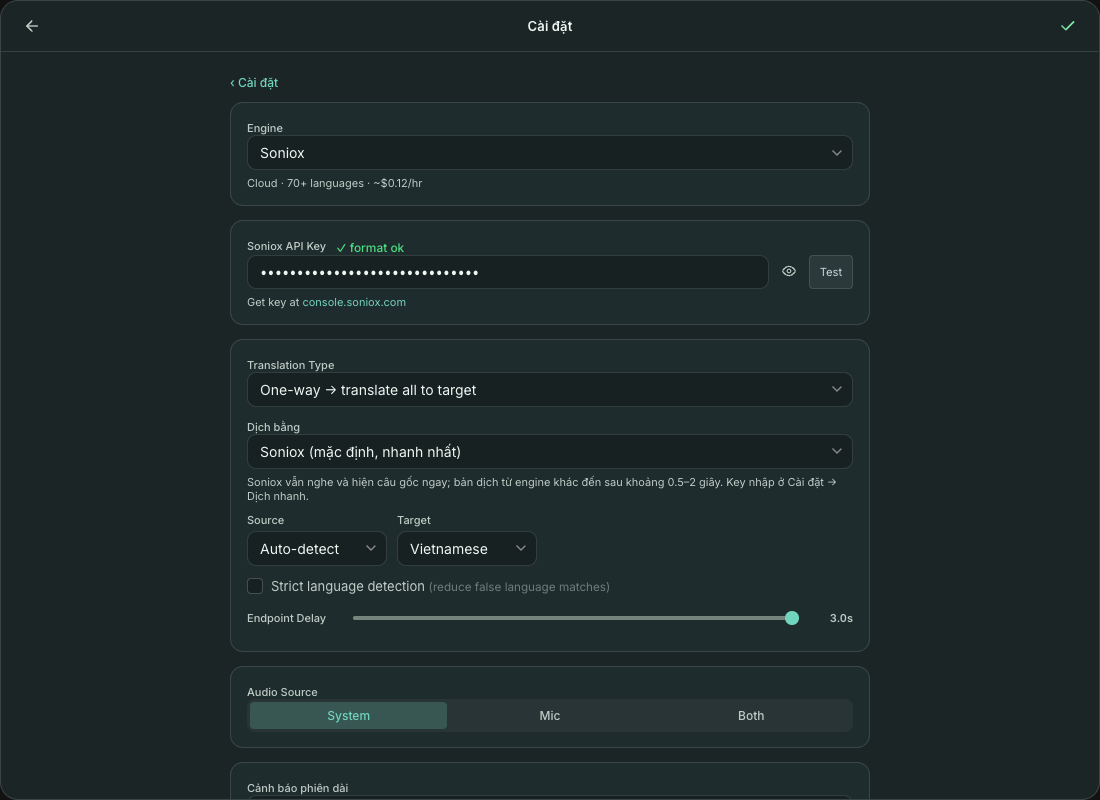
API keys and the Keychain
- The status mark next to a key field shows whether the key format is valid; click Test to check a real connection to the provider. Engines without a valid key are dimmed in the list.
- API keys are stored in the macOS Keychain / Windows Credential Manager, not in
settings.json. Keys from older versions are moved over on first launch, so you don't need to enter them again. - If the Keychain denies access, the app warns you and keeps the key only until the app closes; it never writes keys to a plain-text file.
Open at login
Cài đặt (Settings) → Hiển thị (Display) → Khởi động (Startup) → Mở MiuWave khi đăng nhập máy (Open MiuWave at login): the app opens minimized when you log in and does not start translating on its own.
Display
- Opacity: the window's transparency.
- Font Size: 12–140 px. Max Lines: how many lines stay on screen.
- Show original text: shows the original above the translation (also in the Aa menu).
- Switch between light and dark themes with the button in the top bar; your choice is remembered.
Updates
MiuWave has a built-in updater. When a new version is available, a dot appears on the Cài đặt (Settings) button. Open Cài đặt → Giới thiệu (About) and click Download & Install; the app downloads the update and restarts with the new version. You can also check for updates manually under Updates.
Used the app before it was renamed MiuWave? Your settings, saved sessions and macOS permissions are kept.