
Features
Quick Translate and screenshot translation
Two shortcuts for text: F2 translates the text selected in any app, F3 reads and translates the text in an area of the screen.
Quick Translate (F2)
- Select some text In any app: browser, email, PDF…
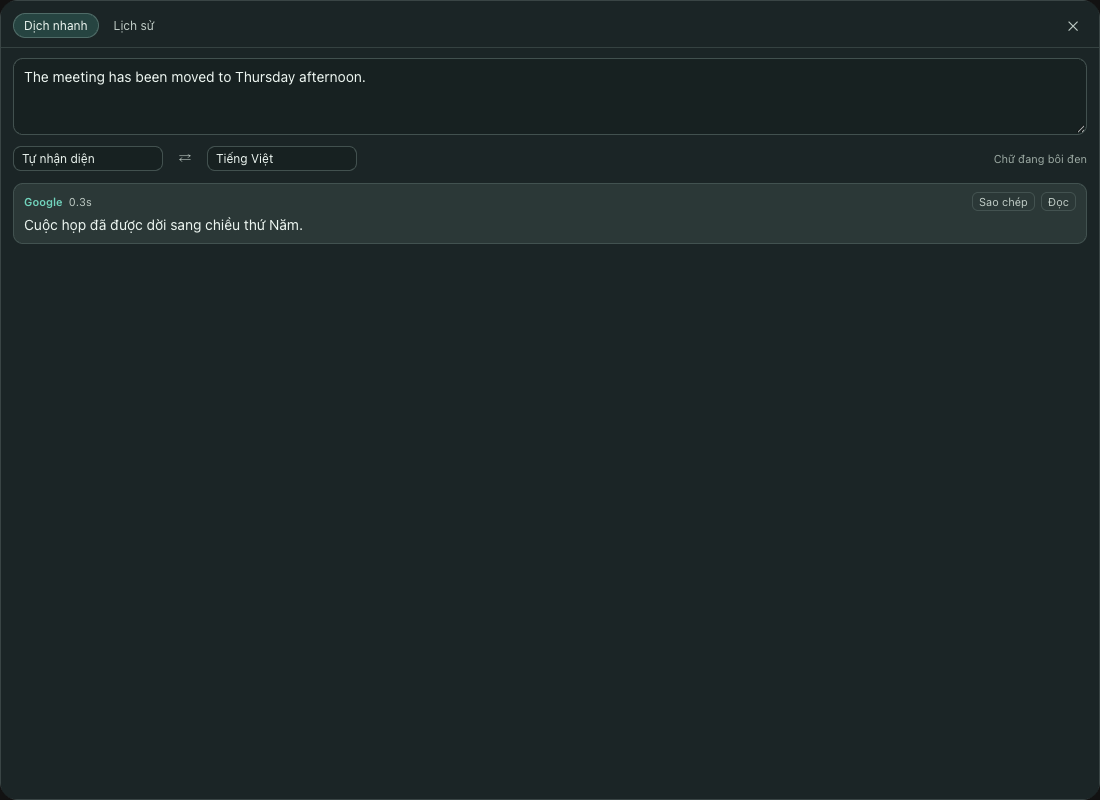
- Press F2 A small Dịch nhanh (Quick Translate) window opens next to the mouse pointer, with translations from several engines side by side. If no text is selected, the app uses the clipboard contents.
- Use the result Each translation has copy and read-aloud buttons. You can type straight into the text box, change the source/target language or click ⇄ (Swap). Esc closes the window.
You can also open it from the ⋯ menu → Dịch nhanh (Quick Translate). Change the shortcut in Cài đặt (Settings) → Dịch nhanh → Phím tắt (Shortcut).
To copy the selected text, MiuWave needs the Accessibility permission. Without it, the window shows a message with an Mở cài đặt (Open settings) button and translates the clipboard contents instead. See how to turn it on. Your clipboard is restored after each copy.
Text translation engines
| Engine | What it needs |
|---|---|
| Free, no key needed | |
| DeepL | DeepL API key (free keys end in :fx) |
| OpenAI | The OpenAI key from the Translation engine page; choose an OpenAI model |
| Gemini | Gemini API key (Google AI Studio) |
| Ollama | Ollama running on your computer, no network needed |
| Local MLX | Gemma, offline on Apple Silicon Macs |
Choose which engines appear in the window under Cài đặt (Settings) → Dịch nhanh (Quick Translate) → Engine hiển thị (Engines shown), and the target language under Dịch sang (Translate to). DeepL and Gemini keys are stored in the Keychain / Credential Manager like the other keys.
History
The Lịch sử (History) tab in the Quick Translate window keeps your 500 most recent lookups. Search with the Tìm trong lịch sử… (Search history…) box, click an entry to reuse it, delete entries one by one or click Xoá hết (Clear all). Translations from screenshots are labelled OCR.
Screenshot translation (F3)
- Press F3 Or choose ⋯ → Chụp màn hình để dịch (Screenshot to translate).
- Drag around the text A slide, an image, a video frame or an app that doesn't let you copy. Esc or a right-click cancels.
- Read the translation The Quick Translate window opens with the text translated. Click Chụp lại (Capture again) to choose another area.
- Text is recognized by the operating system's own OCR (Vision on macOS, Windows OCR on Windows): fast, and nothing is uploaded.
- The OCR language follows the source language, or set it in Cài đặt (Settings) → Dịch nhanh (Quick Translate) → Ngôn ngữ chữ trong ảnh (Text language in image). On a Mac, if it is not set, the language is detected automatically.
- macOS needs the Screen Recording permission the first time. Windows needs the language's OCR pack; the app guides you when it is missing.
- Change the shortcut in Cài đặt (Settings) → Dịch nhanh (Quick Translate) → Phím tắt chụp màn hình (OCR) (Screenshot shortcut (OCR)).